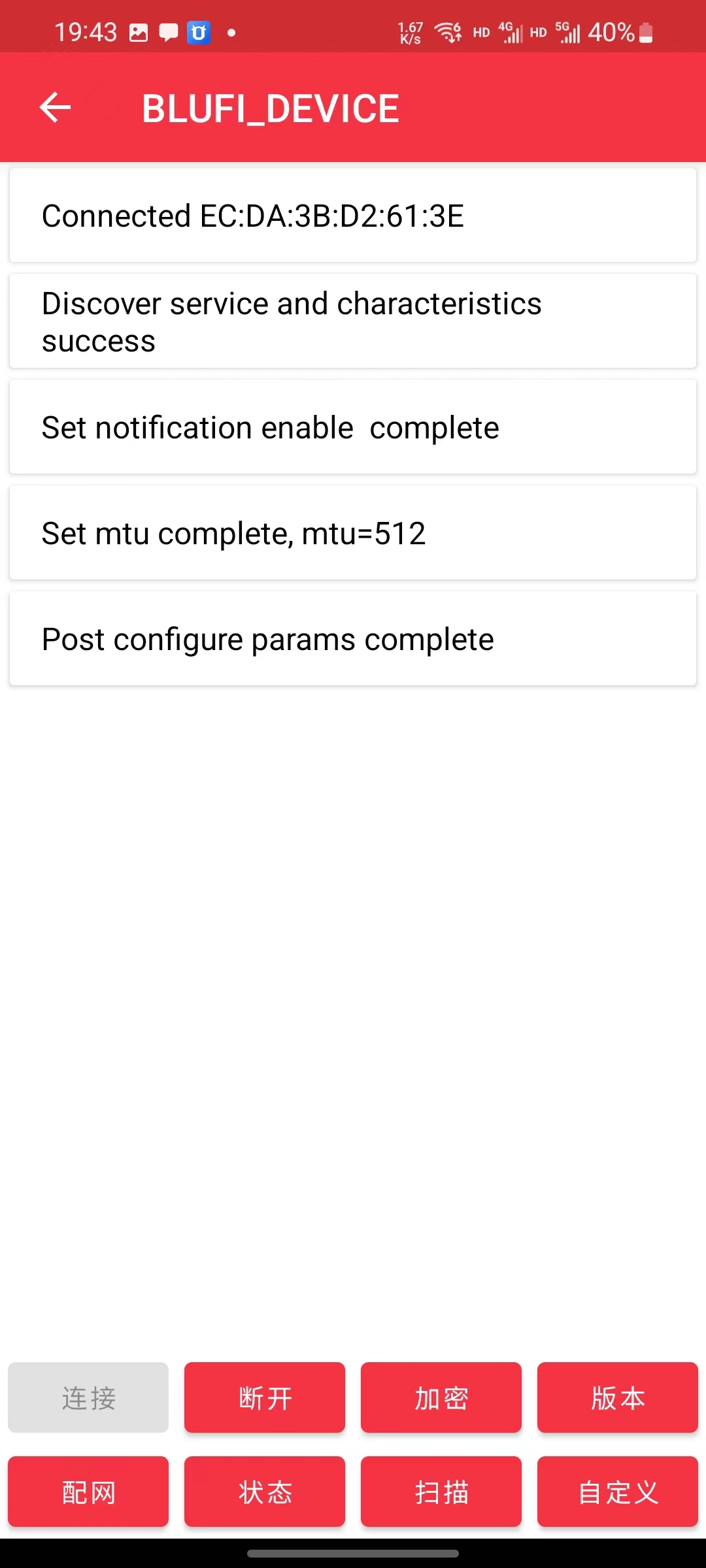
Connect Device to WiFi via APP
Note: If you want to use the default WiFi, do not perform network configuration. Default WiFi name: easysmart, password: 11111111. The device will automatically connect to the default WiFi.
Prerequisites:
- The space has a 2.4G wireless WiFi network.
If unsuccessful, you can also Connect Device to WiFi via Mini Program
1. Insert the battery into the device or plug in the USB power supply
2. (Required for first-time device use) Download the network configuration app
Android:https://github.com/EspressifApp/EspBlufiForAndroid/releases
iOS:https://apps.apple.com/cn/app/espblufi/id1450614082
3. Start network configuration using the Android client as an example
Note: Please enable mobile Bluetooth before proceeding.- Open the client

- Swipe down to refresh devices
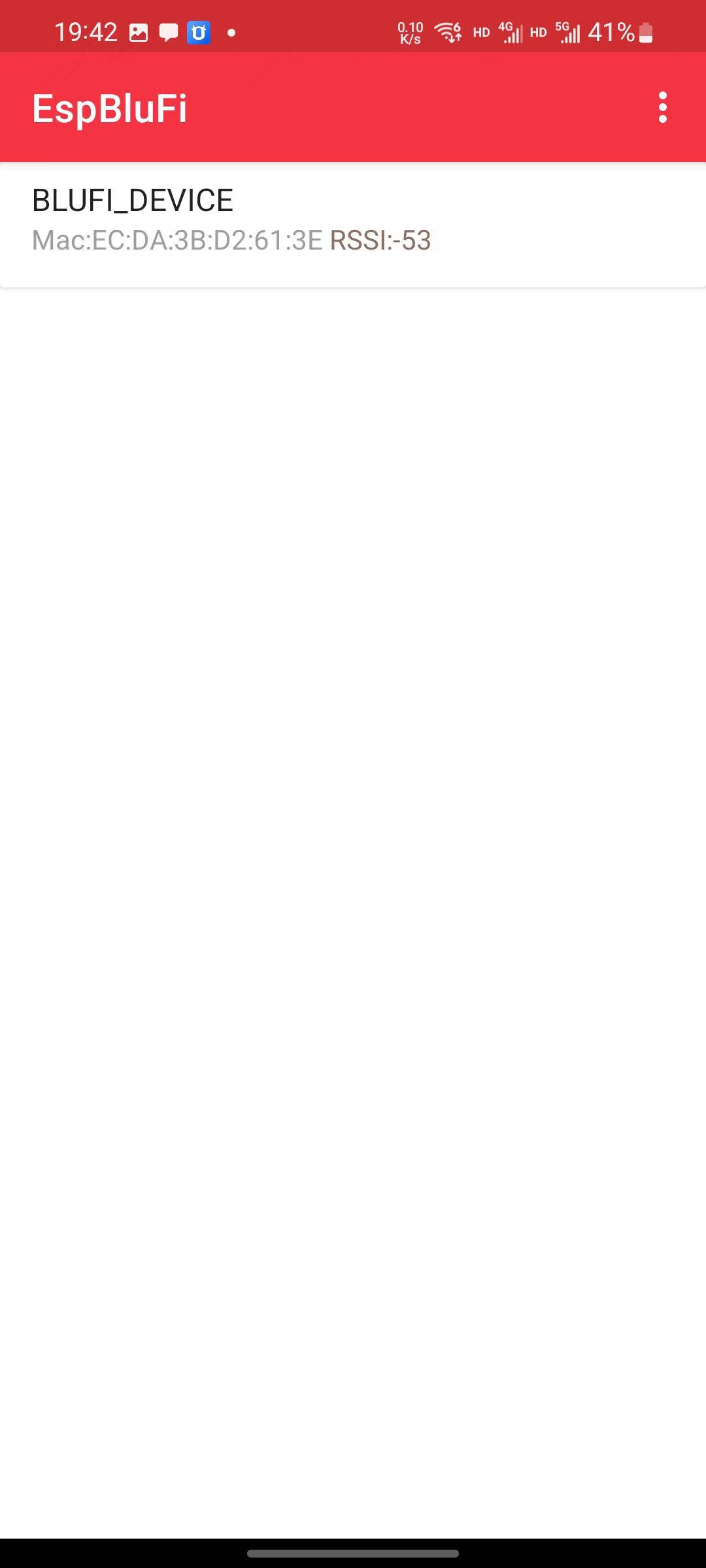
- Tap on the device
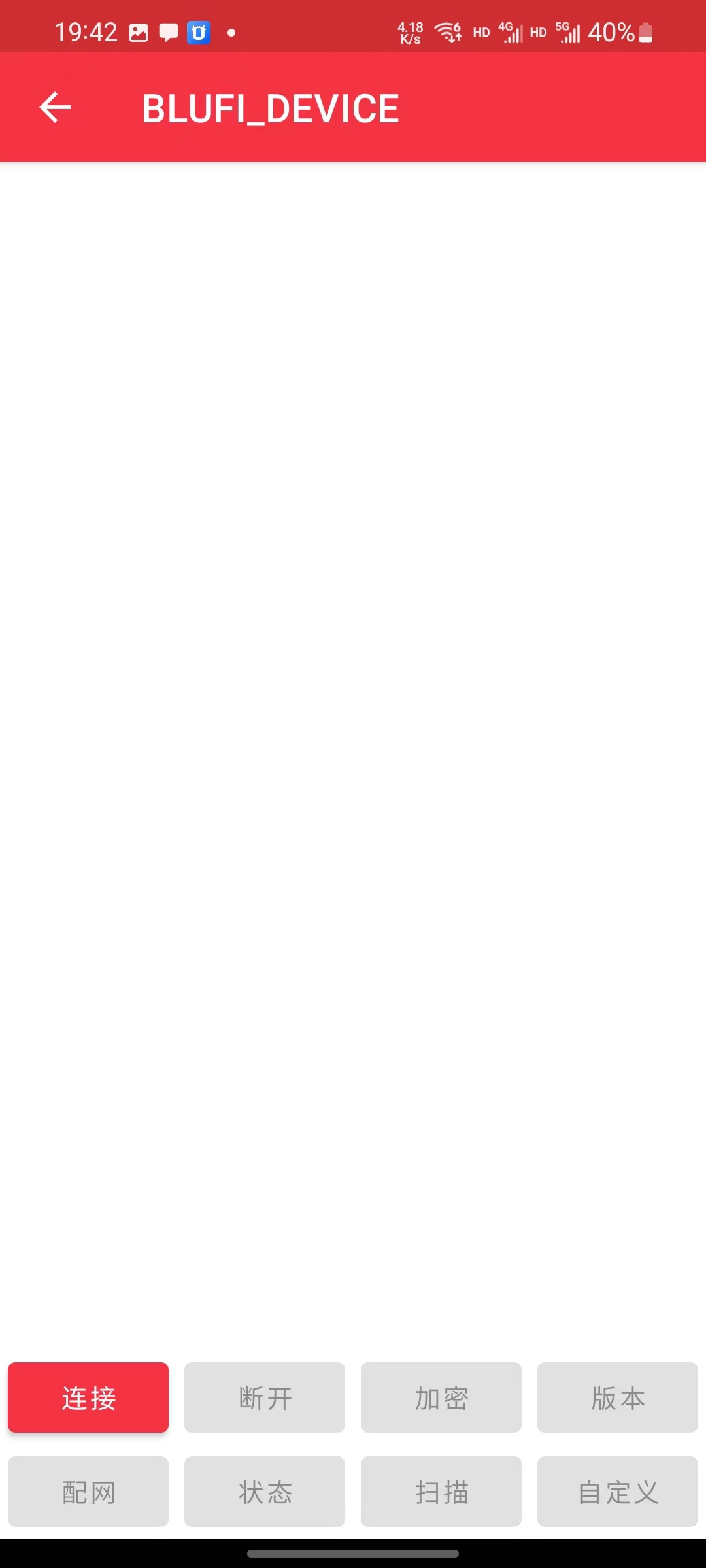
- Tap Connect
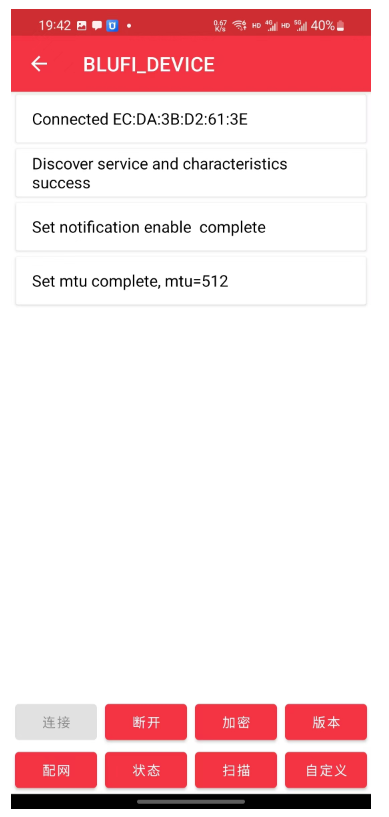
- Tap Network Configuration
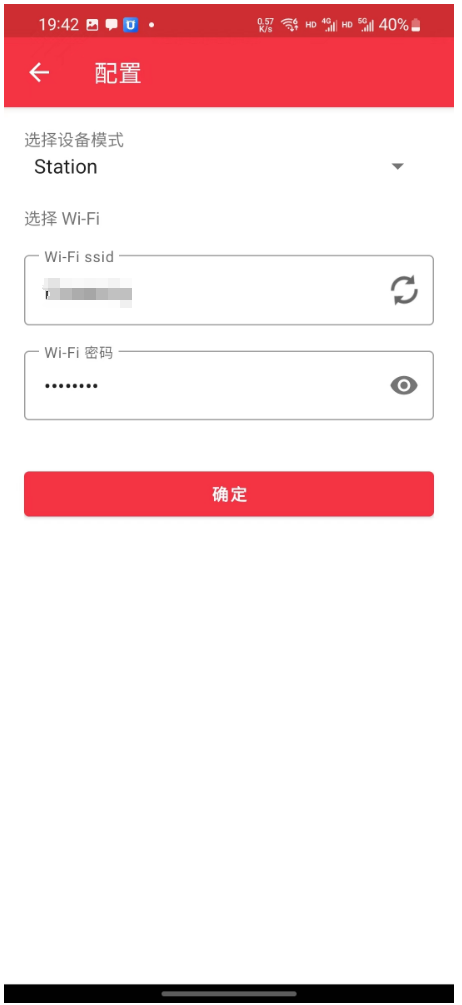
- Select Station mode (default), enter WiFi name and password (Note: Only 2.4G WiFi is supported)
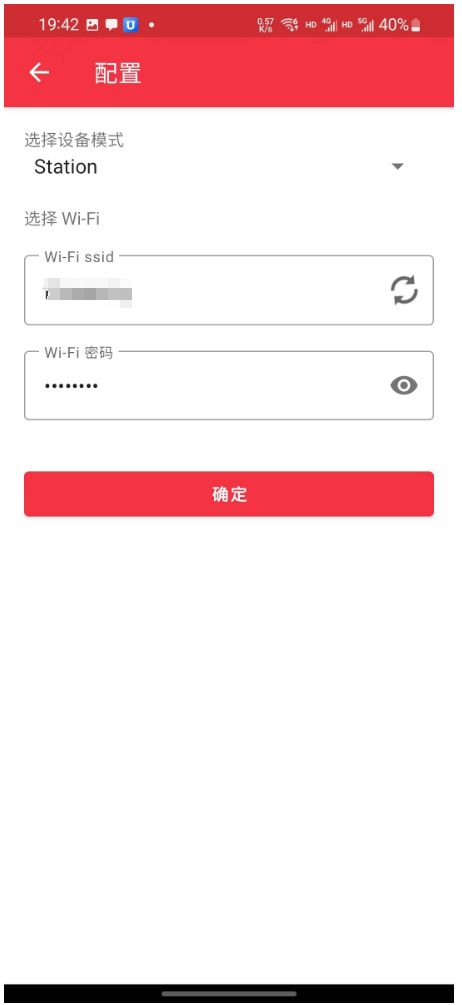
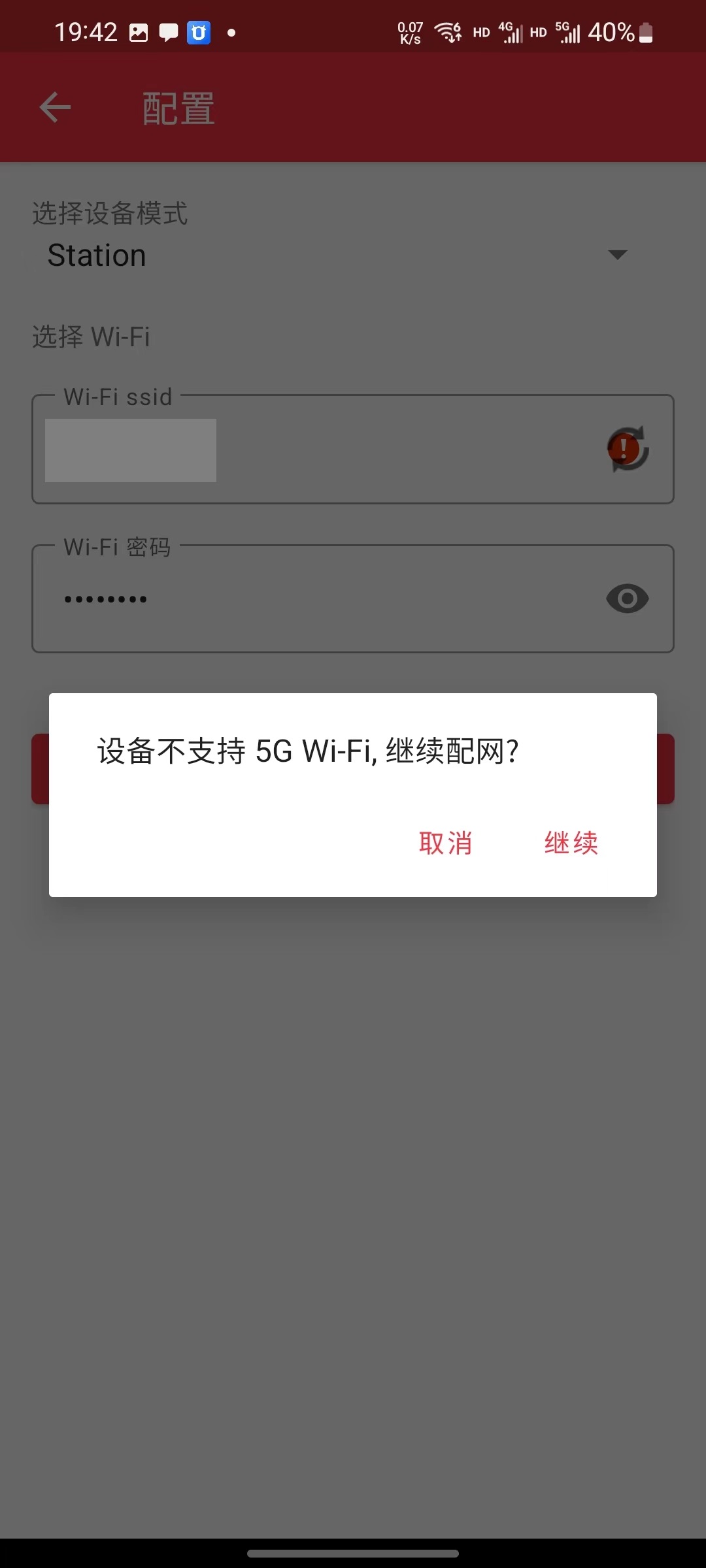
- If dual-band merging is enabled, simply select Continue
- Then it's done
Note: The device will automatically turn off Bluetooth after connecting to WiFi. If it shows failure but the device can no longer be found upon re-scanning, it means the connection was successful.