Video Tutorial
Bilibili: https://www.bilibili.com/video/BV1jBcuzGEyC/ YouTube: https://youtu.be/1m-OEwx_Gjg
PC Client User Guide
- Download Link: https://firmware.undersilicon.cn/control-panel/stable/UnderSilicon.zip
- Please extract the files after downloading and then install. (If extraction fails, you can install 7zip and use it to extract the archive.)
- Launch the client
- Enable your computer's hotspot, set the WiFi name as easysmart with password as eight 1s, and the band to 2.4G band. (See Usage without Computer Hotspot for alternative setup) Note: If the device has already connected to a 5G WiFi network, it might still operate on the 5G band even after being configured for 2.4G. In this case, the device needs to be connected to a 2.4G WiFi network (or via Ethernet) for proper hotspot setup.
- If the device connects to WiFi but does not appear in the client, it might be blocked. Please turn off your computer's firewall.
- Power on the device. It will automatically connect to the computer approximately 15-30 seconds after startup.
- You're ready to have fun!
Usage without Computer Hotspot
- Device Network Configuration: Refer to Connecting the Device to WiFi via APP to connect the device to your home WiFi (Note: Must be 2.4G WiFi)
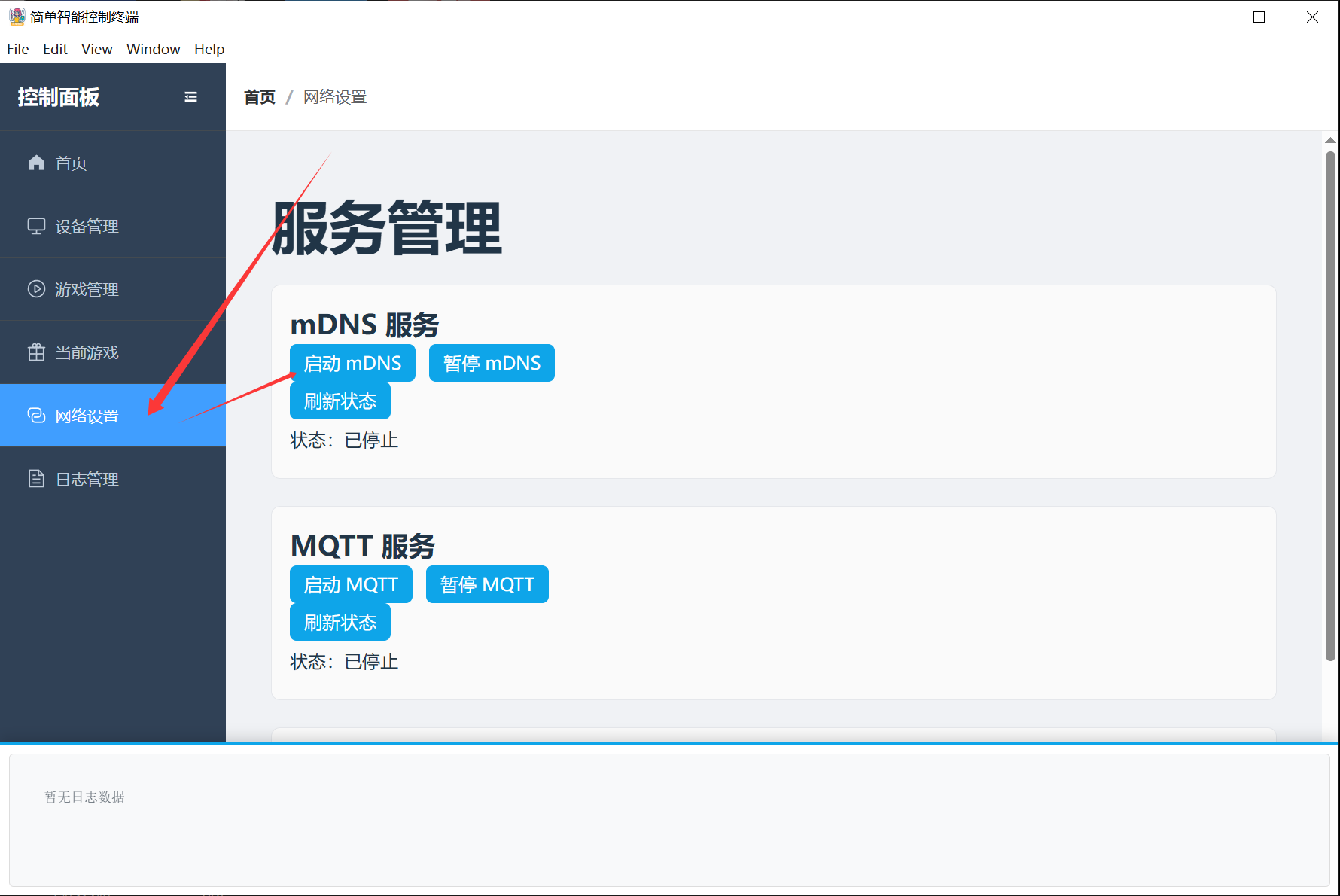
- Enable mDNS in the client
Other Download Links
Stable Version: https://firmware.undersilicon.cn/control-panel/stable/UnderSilicon.zip
Test Version: https://firmware.undersilicon.cn/control-panel/test/UnderSilicon.zip
Historical Versions: https://github.com/jiandanzhineng/control-panel/releases